Proxmox
Setup a new ERPNext instance in Proxmox
This chater describe how to start a new instance of ERPnext in a virtual machine
Current Proxmox server is availabel at https://pve.churra-tailor.ts.net
Create a Virtual Machine with Debian or Ubuntu
In this step we will create a new Virtual machine that will be used to install ERPNExt, the Digital ocean would be to "Create a new droplet"
- In the proxmox UI, choose "Create a new VM"
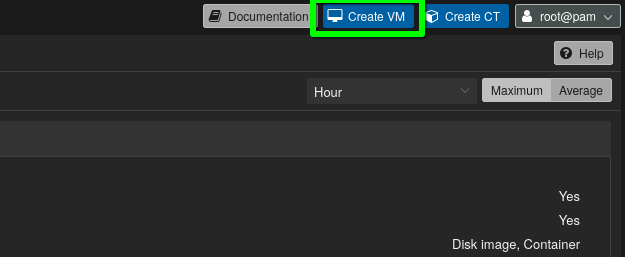
- Follows instructions
- Check the QEMU Agent checkbox
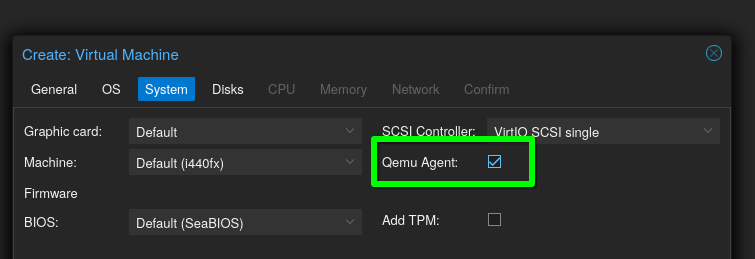
- In the "storage" tab, make bsure to pick a disk with enough space
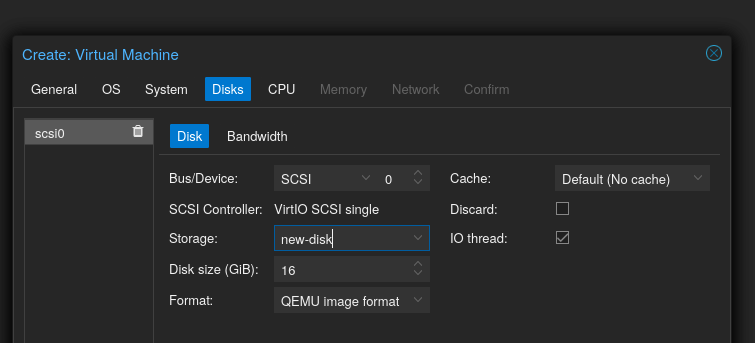
Install the OS
In this step we will install the OS on the virtual machine, in Digital ocean this step is usually done automatically
- Start the VM
- Open the console from the web interface
- Follow the installation instructions
- Create an "erpnext_admin" user in the process
- Install the SSH server.
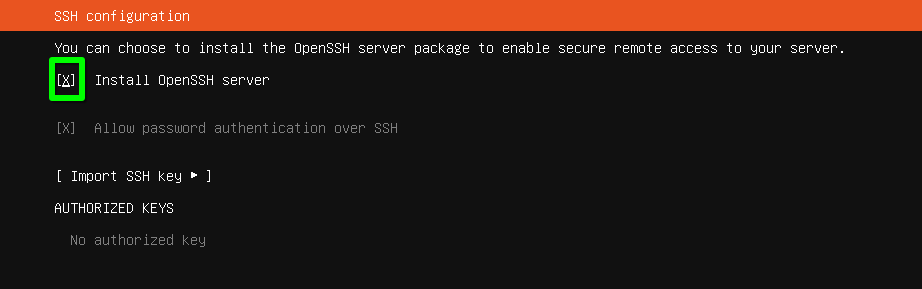
- (for Debian) Don't install a desktop environment

- Once the install is complete, click 'Continue' and let the system reboot
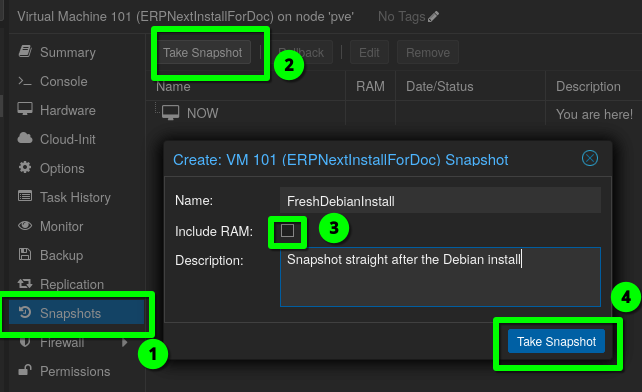
Create a snapshot of the fresh install
This way if there is an issue during the next steps, it will always be possible to quickly revert to a fresh install to restart the process
Connect to the newly created VM
- Option 1 - Via the web console (Not recommended)
- Option 2 - SSH directly with the LAN IP (only possible when connected on the local network)
ssh erpnex_admin@192.168.1.212
- Option 3 - SSH directly via tailscale (Recommended method, need to tailscale and setup tailscale first)
ssh erpnext_admin@machinename.churra-tailor.ts.net

OR

ssh erpnext_admin@100.199.199.199
- Option 4 - SSH usinhg a jump host (Use another system with tailscale as a jump host, a good way to start before tailscale is installed)
ssh -J root@pve.churra-tailor.ts.net erpnext_admin@192.168.1.212
- (Optional) Add your public ssh key to the machine for passwordless connections More informations
Install Tailscale
Install tailscale for remote access * Install curl
sudo ap install curl
- go on the tailscale admin page, selecte "add a new machine"
- Copy the script and laucnh it on the server
curl -fsSL https://tailscale.com/install.sh | sh && sudo tailscale up --auth-key=tskey-auth-xxxxxxx
- Start Tailscale
sudo tailscale up
- Take note of the tailscale ip
tailscale ip
- In the admin console, disable key expiry.
Install ERPNExt (manual Method)
Install ERPNext (Automated script)
TESTED, Worked on debian 13
- Copy the automated script on your server
wget https://raw.githubusercontent.com/abrefael/ERP-Next-16-installation-script/refs/heads/main/erp-next-installation-script.sh
- set the script to be executable
chmod +x ./erp-next-installation-script.sh
- execute the file ad follows instructions
./erp-next-installation-script.sh
- I used the tailscale url for the website address (testforwiki.churra-tailor.ts.net)
Install ERPNext (Docker, quick install)
TESTED, Worked on debian 13
- Install docker and docker compose, for debian see here
- Create a directory for ERPNext:
mkdir erpnext-docker
cd erpnext-docker
- Create a docker compose file using frappe pwd.yml as a reference, change the version number. Updated version
- Run the docker compose
sudo docker compose up -d
- Once finished, make sure all the containers are running
sudo docker ps
- Visit localip:8080 to connect
- administrator
- admin
Install ERPNext on Dokploy
- Install Dokploy in a new container via helper script runned in proxmox console
- Add tailscale in this container Add Tailscale to LXC container
- Access Dokploy by using conatiner-ip-address:3000 (dokploy.churra-tailor.ts.net:3000)